使用Pymatgen计算PhaseDiagram

1367 字
7 分钟
使用Pymatgen计算PhaseDiagram

概述#

PhaseDiagram是Pymatgen中一个非常重要的类,可以用来计算和绘制相图。通过PhaseDiagram,我们可以分析材料的稳定性、相变行为以及预测新的材料组合。本文将介绍如何使用Pymatgen计算PhaseDiagram,并提供一些常用的导入和基础代码示例。 下面是一些使用PhaseDiagram时常用的导入和基础代码示例。

准备工作#

首先导入必要的库:

import re
import matplotlib.pyplot as plt
import numpy as np
import pandas as pd
from matplotlib.tri import Triangulation
from pymatgen.analysis.phase_diagram import PDPlotter, PhaseDiagram
from pymatgen.core.composition import Composition
from pymatgen.core.entries import ComputedEntry
from scipy.spatial import cKDTree
from pltsci import cm, set_ticks, half_plot_set,whole_plot_set #设定全局图像格式
from adjustText import adjust_text
whole_plot_set()

数据准备#

这里,我们使用pymatgen中的MPRester库来获取材料数据,并构建相图所需的条目列表。以下是一个示例代码,展示了如何获取Al-Cu-Sc系统的条目并构建相图:

from pymatgen.ext.matproj import MPRester
chemical_systems = ['Al', 'Cu', 'Sc', 'Al-Cu', 'Al-Sc', 'Cu-Sc', 'Al-Cu-Sc']
with MPRester("example_api_key") as mpr: # 请将example_api_key替换为你自己的API key
docs = mpr.summary.search(
chemsys=chemical_systems,
_fields=['material_id', 'formula_pretty', 'formation_energy_per_atom'],
)
df_system = pd.DataFrame(docs).dropna(subset=['formation_energy_per_atom']).copy()
df_system = df_system[['material_id', 'formula_pretty', 'formation_energy_per_atom']].drop_duplicates()
df_system['material_id'] = df_system['material_id'].astype(str)
df_system['energy'] = df_system['formula_pretty'].map(
lambda formula: Composition(formula).num_atoms
) * df_system['formation_energy_per_atom']
df_system = df_system.sort_values('formation_energy_per_atom').reset_index(drop=True)
df_system

数据如下所示:

material_id formula_pretty formation_energy_per_atom energy
0 mp-813 ScAl2 -0.530799 -1.592396
1 mp-2121 ScAl3 -0.479127 -1.916509
2 mp-331 ScAl -0.466178 -0.932356
3 mp-1219356 ScAlCu -0.434098 -1.302293
4 mp-16497 ScAlCu2 -0.429006 -1.716025
... ... ... ... ...
56 mp-567308 Sc 0.205734 0.205734
57 mp-1239196 Al 0.302126 0.302126
58 mp-1209129 Sc4Al 0.504860 2.524301
59 mp-1008681 Sc 0.719454 0.719454
60 mp-1056079 Cu 1.982934 1.982934

61 rows × 4 columns

构建相图#

有了数据之后,我们就可以使用Pymatgen的PhaseDiagram类来构建相图了。以下是一个示例代码,展示了如何使用PhaseDiagram类来构建相图:

entries = [
ComputedEntry(Composition(row.formula_pretty), row.energy, entry_id=row.material_id)
for row in df_system.itertuples(index=False)
]
phase_diagram = PhaseDiagram(entries)
plotter = PDPlotter(phase_diagram)
fig = plotter.get_plot()
fig.show()

到这里,我们就成功构建了Al-Cu-Sc系统的相图,如下所示。

用于网页展示的话,这个图效果相当好,但是如果需要写入文章,那么这个效果就不太好了。因为这个图是一个交互式的图,写入文章后就失去了交互性了。此外,这种图是为了交互式展示而设计的,写入文章后可能会出现一些显示问题,例如图像模糊、标签重叠等。因此,我们需要提取绘图元数据,使用matplotlib重新绘制一张静态图来写入文章。

提取绘图元数据并使用matplotlib重新绘制相图#

Pymatgen的PDPlotter类有一个pd_plot_data属性,我们可以从中提取绘图元数据,例如相图中的点的坐标、颜色、标签等信息,然后使用matplotlib重新绘制一张静态图来写入文章。 以下是一个示例代码,展示了如何提取绘图元数据并使用matplotlib重新绘制相图:

提取绘图元数据#

lines, stable_entries_plot, unstable_entries_plot = plotter.pd_plot_data
energy_above_hull = {entry.entry_id: phase_diagram.get_e_above_hull(entry) for entry in entries}
entries_plot = {}
for (x, y), entry in stable_entries_plot.items():
entries_plot[entry.entry_id] = {
'reduced_formula': entry.reduced_formula,
'energy': entry.energy,
'energy_per_atom': entry.energy_per_atom,
'x': x,
'y': y,
'energy_above_hull': energy_above_hull[entry.entry_id],
'stable': True,
}
for entry, (x, y) in unstable_entries_plot.items():
entries_plot[entry.entry_id] = {
'reduced_formula': entry.reduced_formula,
'energy': entry.energy,
'energy_per_atom': entry.energy_per_atom,
'x': x,
'y': y,
'energy_above_hull': energy_above_hull[entry.entry_id],
'stable': False,
}
df_entries_plot = pd.DataFrame.from_dict(entries_plot, orient='index').reset_index(names='material_id')
df_lines = pd.DataFrame(
[
{'x1': line[0][0], 'y1': line[1][0], 'x2': line[0][1], 'y2': line[1][1]}
for line in lines
]
)
df_entries_plot.sort_values(['stable', 'energy_above_hull'], ascending=[False, True])

提取的绘图元数据如下:

material_id reduced_formula energy energy_per_atom x y energy_above_hull stable
0 mp-593 Al4Cu9 -3.030330 -0.233102 0.653846 0.599556 0.000000 True
1 mp-2121 ScAl3 -1.916509 -0.479127 0.750000 0.000000 0.000000 True
2 mp-1169 ScCu -0.513136 -0.256568 0.250000 0.433013 0.000000 True
3 mp-1018149 ScCu2 -0.709247 -0.236416 0.333333 0.577350 0.000000 True
4 mp-862259 Sc3Al -1.155269 -0.288817 0.250000 0.000000 0.000000 True
... ... ... ... ... ... ... ... ...
50 mp-567308 Sc 0.205734 0.205734 0.000000 0.000000 0.205734 False
30 mp-1239196 Al 0.302126 0.302126 1.000000 0.000000 0.302126 False
51 mp-1008681 Sc 0.719454 0.719454 0.000000 0.000000 0.719454 False
60 mp-1209129 Sc4Al 2.524301 0.504860 0.200000 0.000000 0.735914 False
21 mp-1056079 Cu 1.982934 1.982934 0.500000 0.866025 1.982934 False

61 rows × 8 columns

定义绘图辅助函数#

def to_latex(formula_pretty: str) -> str:
'''
将化学式转换为LaTeX格式,适用于matplotlib的文本显示。
例如:ScAl2 -> $\mathrm{ScAl_{2}}$
'''
formula = re.sub(r'\)(\d+)', r')_{\1}', formula_pretty)
formula = re.sub(r'([A-Z][a-z]?)(\d+)(?![}])', r'\1_{\2}', formula)
return f'$\\mathrm{{{formula}}}$'
def reconstruct_triangles(points: np.ndarray, lines_df: pd.DataFrame, tol: float = 1e-6) -> list[list[int]]:
'''
根据相图中的线段数据重建三角形连接关系,以便在matplotlib中使用Triangulation进行等高线绘制。
'''
if len(points) < 3 or lines_df.empty:
return []
tree = cKDTree(points)
adjacency = [set() for _ in range(len(points))]
p1 = lines_df[['x1', 'y1']].to_numpy(float)
p2 = lines_df[['x2', 'y2']].to_numpy(float)
d1, idx1 = tree.query(p1, k=1)
d2, idx2 = tree.query(p2, k=1)
for point_a, point_b, dist_a, dist_b in zip(idx1, idx2, d1, d2):
if dist_a <= tol and dist_b <= tol and point_a != point_b:
adjacency[point_a].add(point_b)
adjacency[point_b].add(point_a)
triangles = []
for i in range(len(points)):
neighbors = adjacency[i]
for j in (value for value in neighbors if value > i):
common_neighbors = neighbors.intersection(adjacency[j])
for k in (value for value in common_neighbors if value > j):
triangles.append([i, j, k])
return triangles

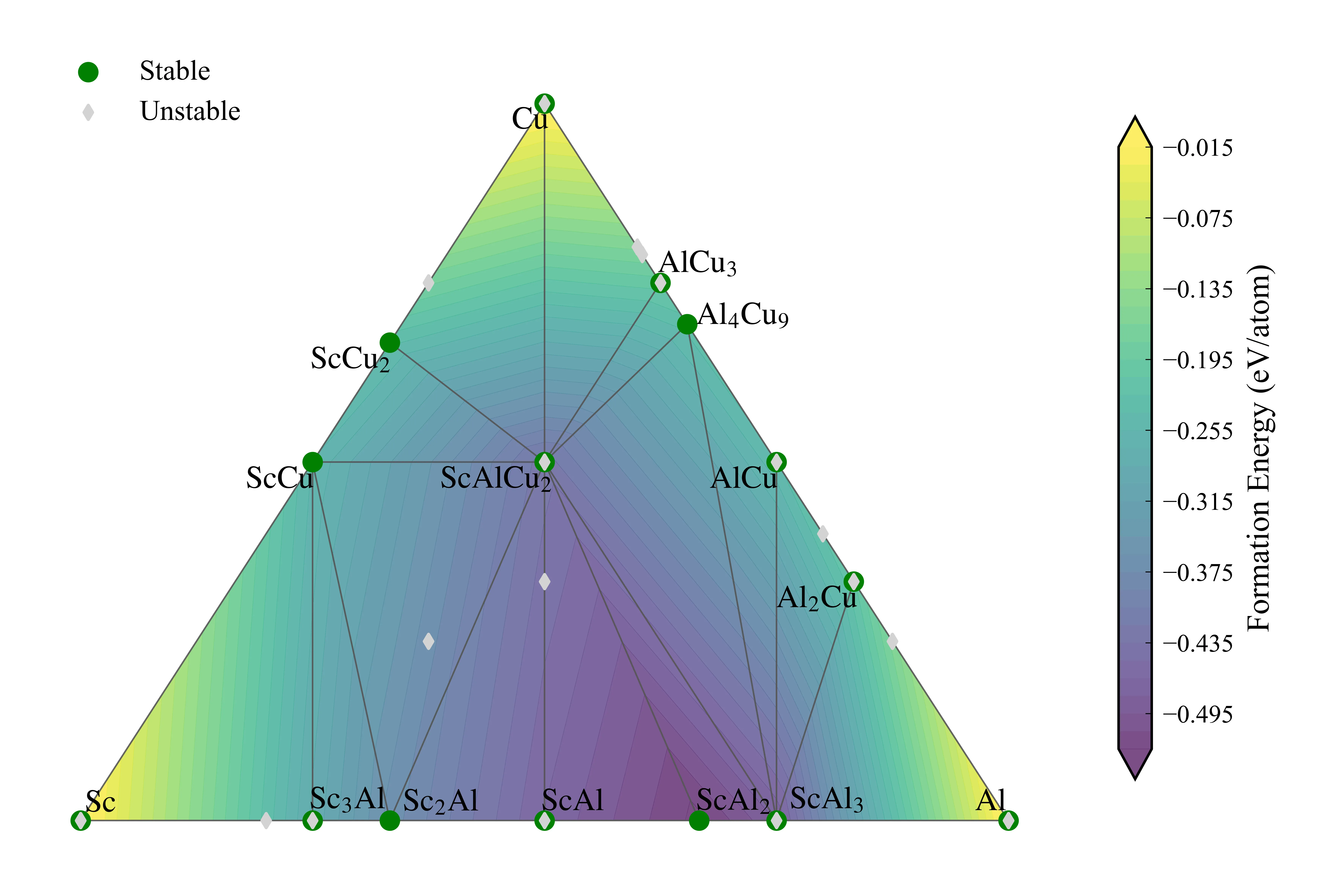
使用matplotlib重新绘制相图#

df_stable = df_entries_plot[df_entries_plot['stable']].copy()
df_unstable = df_entries_plot[~df_entries_plot['stable']].copy()
fig, ax = plt.subplots(figsize=(15 * cm, 10 * cm))
if len(df_stable) >= 3 and not df_lines.empty:
points = df_stable[['x', 'y']].to_numpy(float)
triangles = reconstruct_triangles(points, df_lines)
if triangles:
triangulation = Triangulation(points[:, 0], points[:, 1], np.asarray(triangles, dtype=int))
else:
triangulation = Triangulation(points[:, 0], points[:, 1])
contour = ax.tricontourf(
triangulation,
df_stable['energy_per_atom'].to_numpy(float),
levels=50,
cmap='viridis',
alpha=0.7,
zorder=1,
extend='both',
)
cbar = plt.colorbar(contour, ax=ax, shrink=0.8)
cbar.set_label('Formation Energy (eV/atom)', fontsize=10)
cbar.ax.tick_params(labelsize=8)
half_plot_set(cbar.ax)
for _, row in df_lines.iterrows():
ax.plot([row['x1'], row['x2']], [row['y1'], row['y2']], c='#555555', linewidth=0.5, zorder=9, alpha=0.9)
if not df_stable.empty:
ax.scatter(
df_stable['x'],
df_stable['y'],
marker='o',
color='green',
s=30,
label='Stable',
zorder=30,
)
if not df_unstable.empty:
ax.scatter(
df_unstable['x'],
df_unstable['y'],
marker='d',
c='lightgray',
s=10,
label='Unstable',
zorder=35,
)
texts = []
for row in df_stable.itertuples(index=False):
texts.append(
ax.text(
row.x,
row.y,
to_latex(row.reduced_formula),
fontsize=10,
ha='center',
va='center',
zorder=100,
weight='regular',
color='black',
)
)
# if adjust_text is not None and texts:
adjust_text(texts, ax=ax)
ax.set_xticks([])
ax.set_yticks([])
ax.spines['top'].set_visible(False)
ax.spines['right'].set_visible(False)
ax.spines['bottom'].set_visible(False)
ax.spines['left'].set_visible(False)
ax.set_xlim(-0.05, 1.05)
ax.set_ylim(-0.05, 0.95)
plt.tight_layout()
fig.savefig('Al-Cu-Sc_phase_diagram.webp', dpi=1200)
plt.show()

最终效果如下:

使用Pymatgen计算PhaseDiagram
https://www.kaimoe.cn/posts/使用pymatgen计算phasediagram/
作者
开萌
发布于
2026-04-06
许可协议
CC BY-NC-SA 4.0
Profile Image of the Author
开萌
记录材料计算、科研绘图与开发配置。
分类
标签

目录